Capturing screenshots on Windows 10 using the Snip Tool is a convenient and versatile process. The Snip Tool provides a user-friendly interface with various Snipping options to choose from. Whether you prefer a Free-form Snip, Rectangular Snip, Window Snip, or Full-screen Snip, the tool offers flexibility in capturing specific areas of the screen. Once you’ve selected the desired snipping mode, the screen freezes, allowing you to easily outline the desired region using your mouse. Once captured, the screenshot is displayed within the Snip Tool window, giving you the opportunity to make any necessary edits or annotations.
5. Take screenshots on Windows 10 with Lightshot
Lightshot is a popular screenshot tool available for Windows, Mac, and as a browser extension. It allows users to quickly capture and share screenshots with ease. Lightshot offers various features, including capturing specific areas of the screen, full-screen captures, and the ability to capture screenshots of specific windows or browser tabs. Once a screenshot is taken, Lightshot provides an intuitive editor that enables users to annotate and edit the captured image by adding text, arrows, shapes, highlights, and more. Additionally, Lightshot allows for easy sharing of screenshots through social media platforms or by generating links. Its user-friendly interface and versatile features make Lightshot a convenient choice for capturing and sharing screenshots.
Download Lightshot: Here
Steps to take a screenshot of Windows 10 using Lightshot
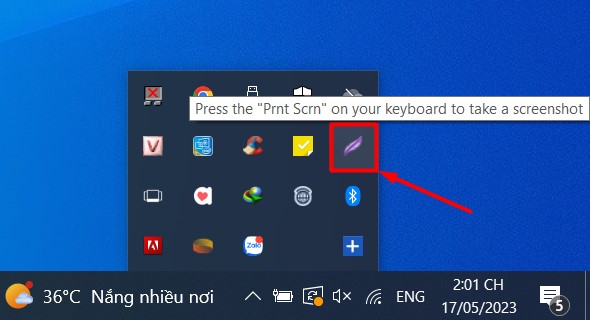
- Launch Lightshot: Once installed, open Lightshot either from the desktop shortcut or by searching for “Lightshot” in the Start menu.
- Select the area to capture: After launching Lightshot, your screen will be dimmed, and a crosshair cursor will appear. Click and drag to select the specific area of the screen that you want to capture.
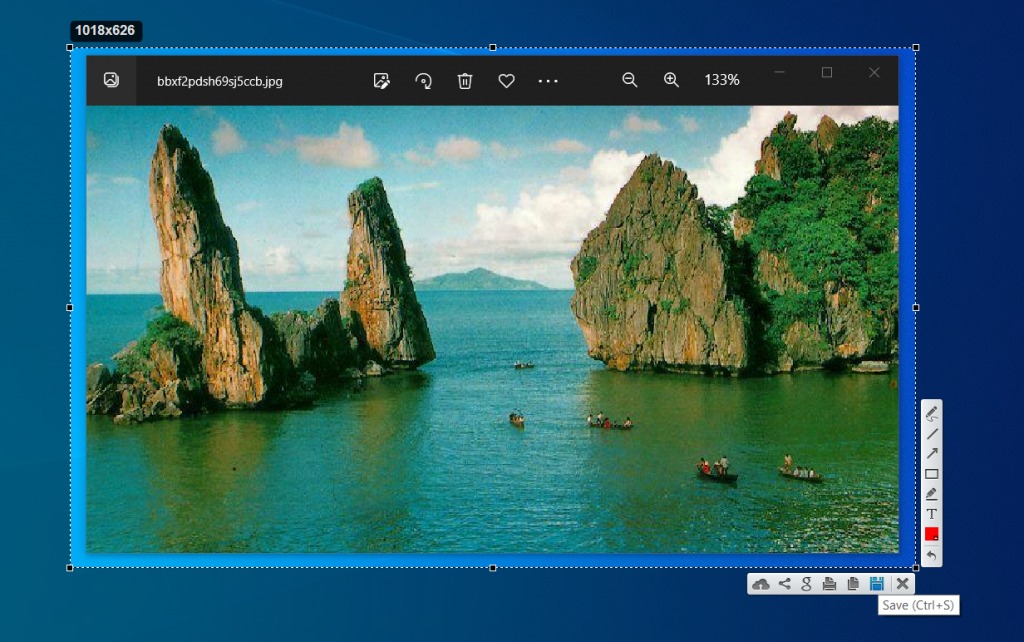
- Capture the screenshot: Once you’ve selected the desired area, release the mouse button. The captured screenshot will open in the Lightshot editor.
- Edit and annotate (optional): Lightshot provides various editing tools, such as adding text, arrows, shapes, and highlights, to enhance your screenshot. You can use these tools to annotate or make adjustments to the captured image.
- Save or share the screenshot: After editing, click on the save icon to save the screenshot to your computer. Lightshot also provides options to directly share the screenshot via social media platforms or generate a link for easy sharing.
Above we have listed the simplest and most popular ways to take screenshots in Windows 10. Hope it helps you!